Windows Autopilot sounds almost too good to be true: no custom images, no USB drives, no on-site tech. A user opens a brand-new laptop, signs in, and the device configures itself. And it really does work — when you set it up right. Skip a step or misconfigure one setting, and you'll be on the phone with a confused end user staring at a generic Windows desktop with zero policies applied.
Prerequisites
- ✓Licensing: Intune Plan 1 + Entra ID P1. If you're on M365 E3/E5 or Business Premium, you already have these.
- ✓Entra ID Tenant: Automatic MDM enrollment has to be turned on. Seriously — this is the #1 thing people forget.
- ✓Windows Version: Windows 10 (1809+) or Windows 11. Anything older and you're fighting an uphill battle.
- ✓Internet Connectivity: Devices need internet during OOBE. No domain controller, no VPN — just internet.
- ✓OEM Support: Dell, HP, and Lenovo will register hardware hashes at the factory. Always ask for this — it saves hours.
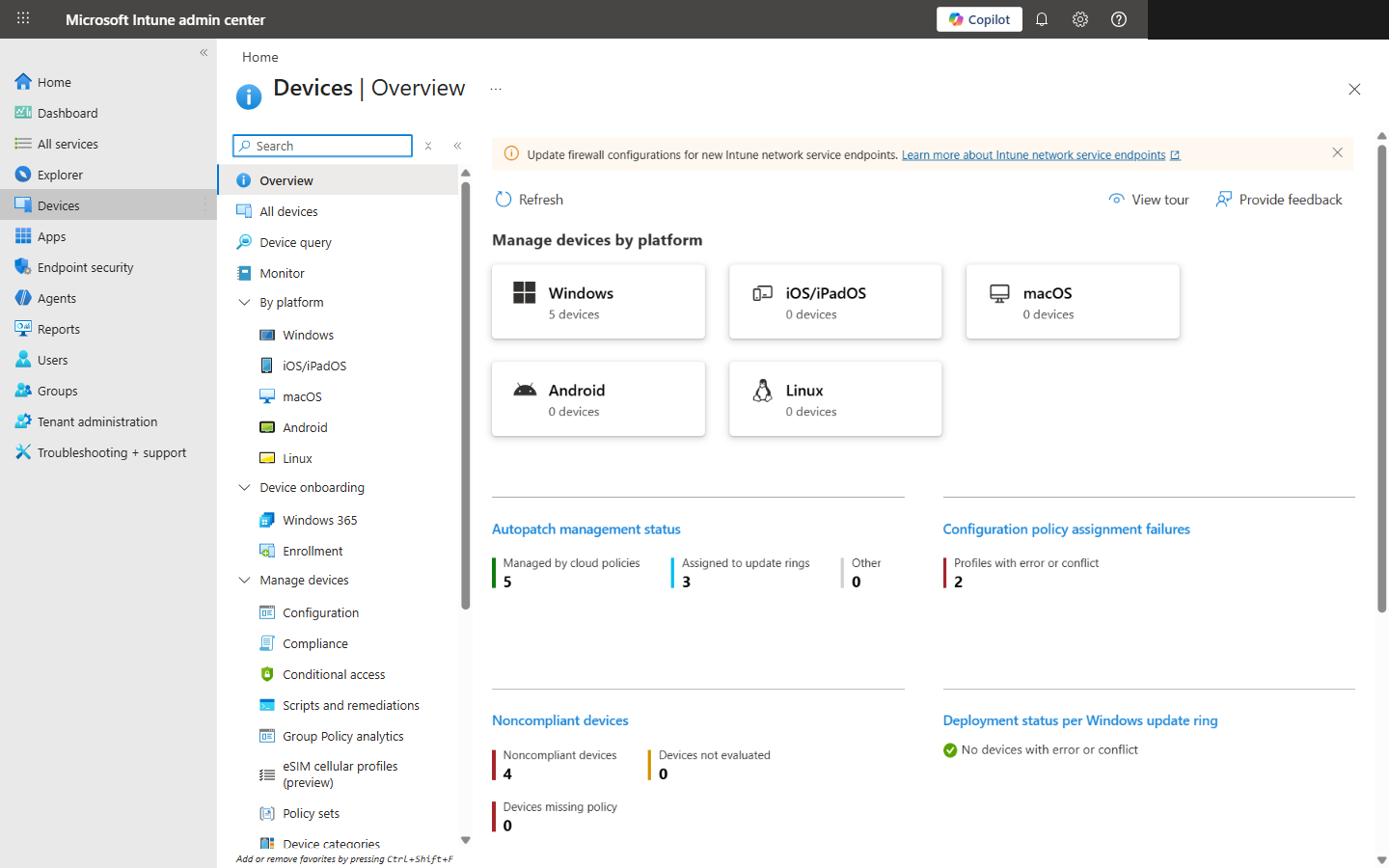
Intune Devices Overview showing managed Windows devices by platform
Step 1: Verify Licensing and Tenant Configuration
- Go to Devices > Enrollment > Automatic enrollment.
- Make sure MDM user scope is set to All or a specific group. Not "None." Never "None."
- Confirm the MDM URLs are populated with the default Intune values. Don't touch them unless you know exactly why.
Critical: If MDM user scope is set to "None," Autopilot fails silently during OOBE. No error message, no log entry — just a regular Windows setup like Autopilot doesn't exist. We've seen this catch experienced admins.
Step 2: Collect and Register Hardware Hashes
OEM Registration (Recommended)
Tell your vendor (Dell, HP, Lenovo) to register hashes to your tenant when you buy. This is the way. No touching devices, no scripts, no CSV wrangling.
PowerShell Script (Existing Devices)
Run Get-WindowsAutopilotInfo on each device. Works fine for a handful of machines, gets tedious fast past 20.
Manual Import in Intune
Go to Devices > Enrollment > Windows Autopilot > Devices and upload your CSV. Expect it to take 5-15 minutes to process — don't panic if it's slow.
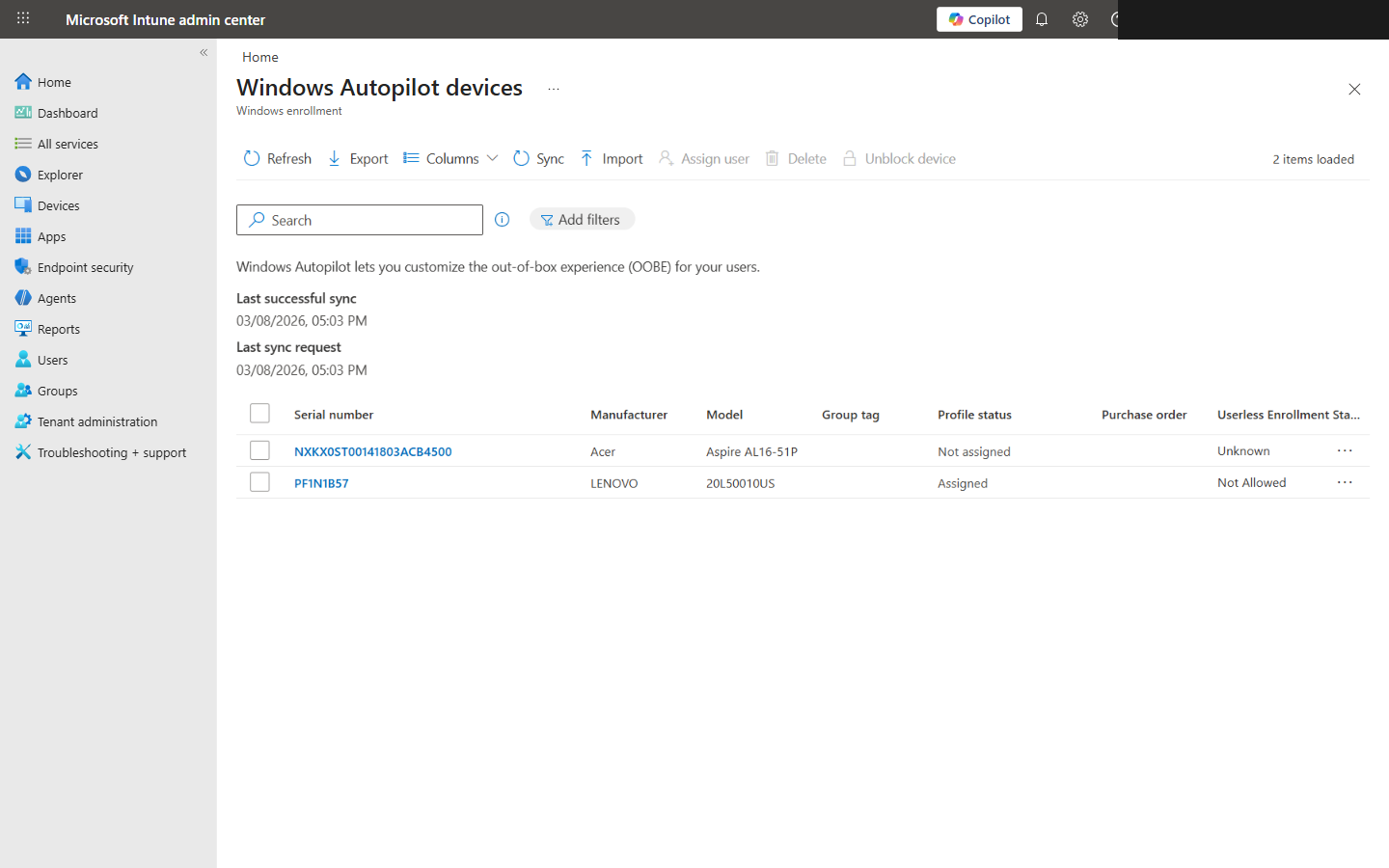
Autopilot devices list showing registered devices with serial numbers and profile status
Step 3: Create a Device Group
You need a dynamic Entra ID security group that automatically catches every Autopilot-registered device. Here's the membership rule — copy it exactly:
Step 4: Configure the Deployment Profile
| Setting | Recommended |
|---|---|
| Deployment mode | User-driven (self-deploying has its place, but user-driven is what you want 90% of the time) |
| Join type | Entra ID joined (not hybrid — pure cloud join) |
| EULA / Privacy settings | Hide (your users don't need to click through this) |
| User account type | Standard — never Administrator. No exceptions. |
| Allow pre-provisioned deployment | Yes (lets you pre-stage in the office if needed) |
| Device name template | CN-%SERIAL% (or whatever fits your naming convention) |
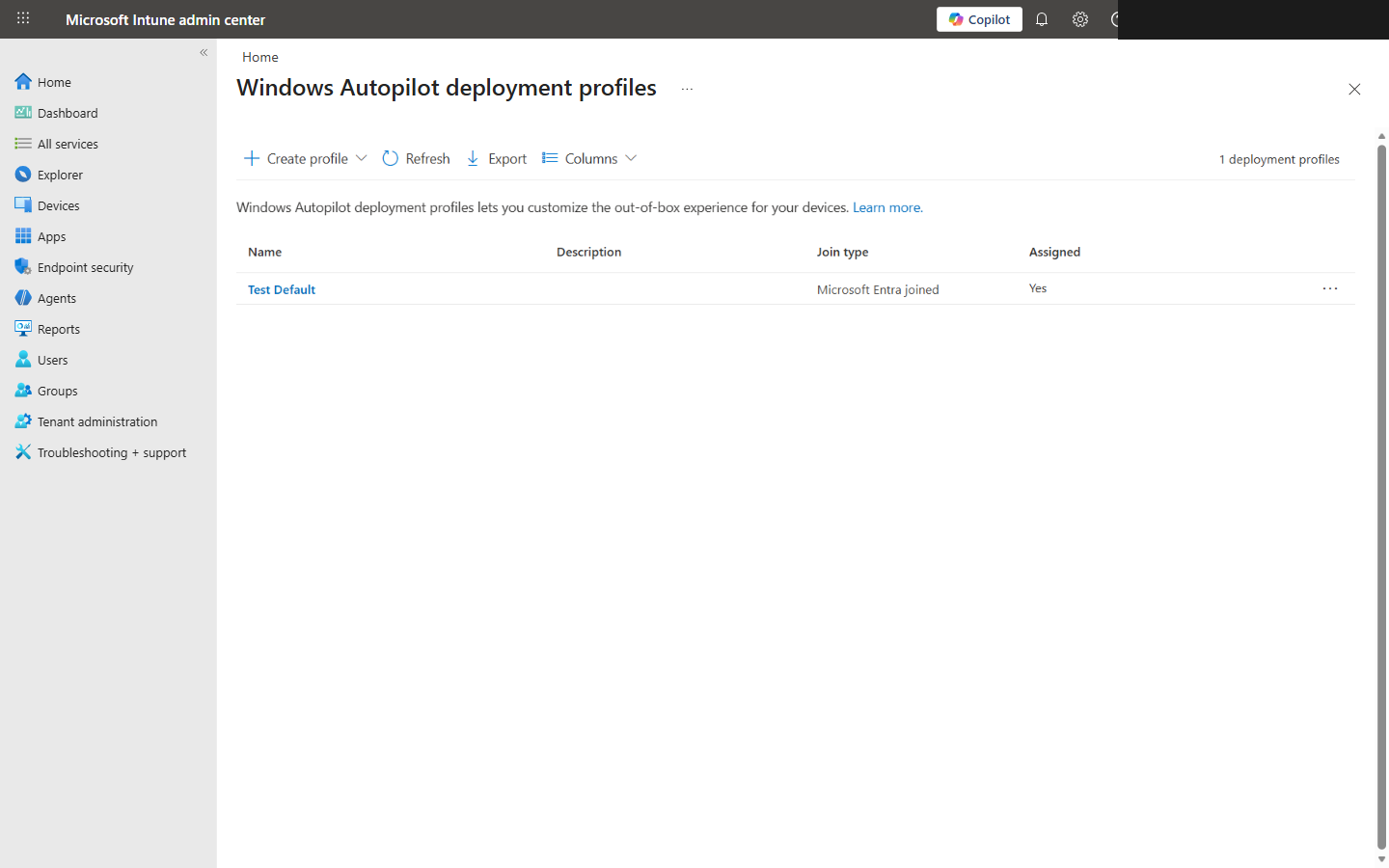
Windows Autopilot deployment profiles configuration
Step 5: Configure the Enrollment Status Page
The ESP is what keeps users from jumping onto the desktop before their apps and policies are actually installed. Skip this, and you'll get tickets like "where's Outlook?" within five minutes of setup.
| Setting | Value |
|---|---|
| Show configuration progress | Yes (users need to see something is happening) |
| Timeout (minutes) | 60 (generous, but you'd be surprised how slow some tenant syncs are) |
| Block device use until required apps installed | Yes — this is the whole point of the ESP |
| Allow users to collect logs | Yes (you'll want these when debugging) |
| Allow device reset on error | Yes (lets users self-recover without calling you) |
| Allow device use on error | No (a half-configured device is worse than a stuck one) |
Warning: This is where 90% of ESP failures happen. Don't throw 15 apps on the blocking list and wonder why it times out. Stick to 5-8 critical apps. Everything else can install in the background after the user lands on the desktop.
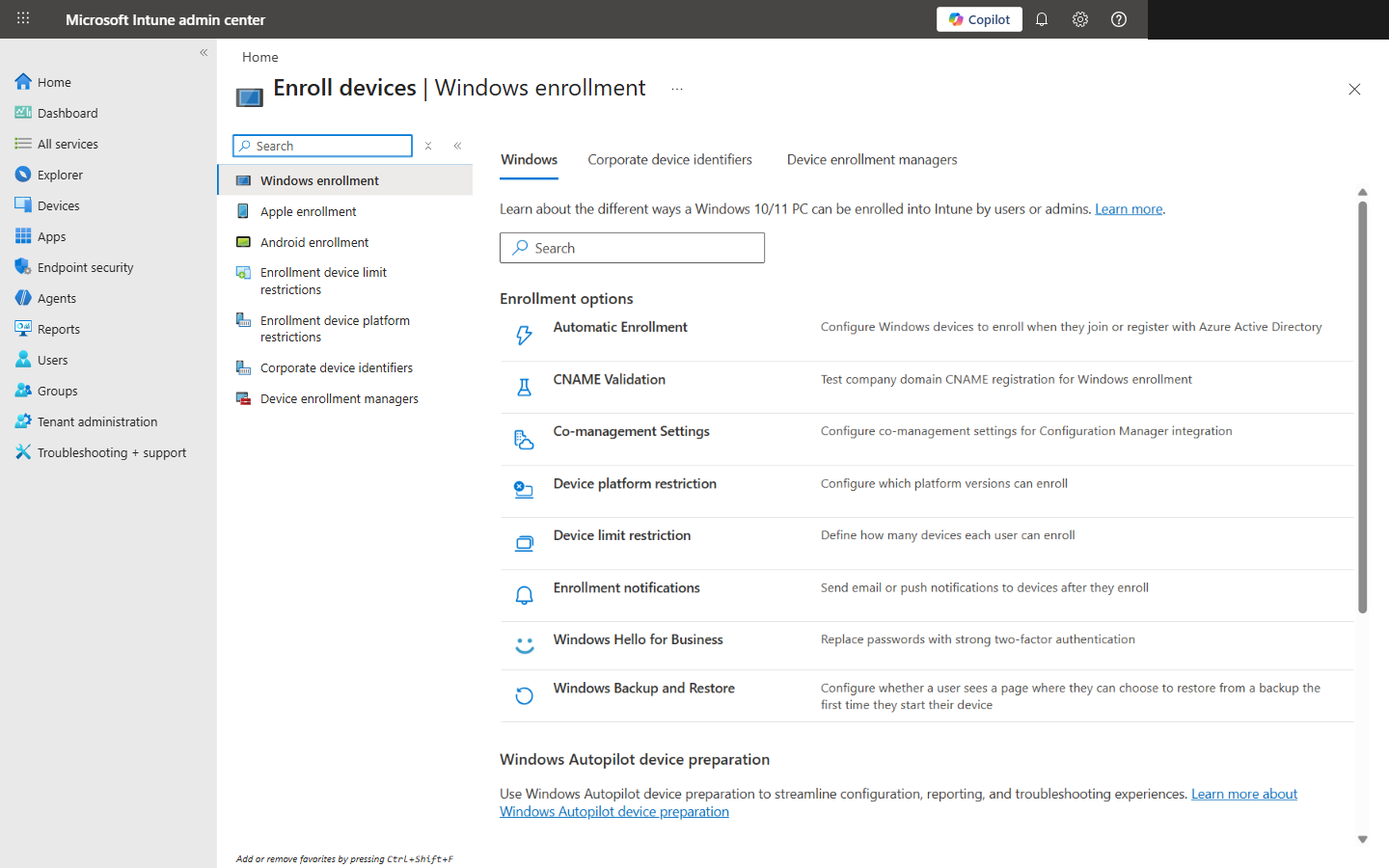
Windows enrollment settings — Enrollment Status Page, Deployment profiles, and Autopilot device management
Network Requirements
Autopilot devices need to reach these Microsoft endpoints on port 443. If your firewall team is aggressive with outbound filtering, send them this list now — not the day of deployment:
*.microsoftonline.com
*.msftauth.net / *.msauth.net
enrollment.manage.microsoft.com
ztd.dds.microsoft.com / cs.dds.microsoft.com
*.dl.delivery.mp.microsoft.com
*.windowsupdate.com
- Use wired Ethernet if you can. Wi-Fi works, but we've seen too many failures from flaky wireless during OOBE.
- Captive portals will kill your deployment. If the provisioning network has one, turn it off or use a different SSID.
- Budget 2-5 GB per device for the initial setup. If you're rolling out 50 laptops at once, that bandwidth adds up fast.
Troubleshooting Common Issues
| Problem | Solution |
|---|---|
| Device doesn't enter Autopilot | Re-import the CSV, hit Sync, and wait 15 minutes. Yes, really — it's just slow sometimes. |
| ESP times out at 60 minutes | You have too many blocking apps. Cut it to 5 or fewer. This fixes it almost every time. |
| Device joins as Personal instead of Corporate | MDM user scope is wrong. Set it to All. This is the classic gotcha. |
| User ends up with Administrator rights | Check your deployment profile — user account type needs to be Standard, not Admin. |
| Apps don't install until after the desktop loads | The app assignment is set to Available instead of Required. Required apps install during ESP. |