Let's be honest — most Intune deployments we walk into have security baselines applied with every setting left at default. The admin clicked through the wizard, hit Create, and called it a day. That's not security configuration. That's checkbox compliance, and it won't hold up to a real audit. In this guide, I'll walk you through how we actually build baseline profiles — customized against CIS benchmarks, properly scoped, piloted before rollout, and monitored so you catch problems before your users do.
Prerequisites
- 1.Licensing: You need Intune Plan 1 at minimum — that's included with M365 E3/E5, Business Premium, or standalone.
- 2.Entra ID: Devices need to be Entra ID joined or hybrid joined. Workplace-joined won't cut it here.
- 3.Intune Enrollment: Your devices need to actually be enrolled. Sounds obvious, but I've seen it missed.
- 4.Role-Based Access: You'll need Endpoint Security Manager, Intune Administrator, or Global Admin. Don't use Global Admin for this if you can avoid it.
- 5.Windows Version: Windows 10 1809 or later, or Windows 11. If you're still on 1803, you've got bigger problems.
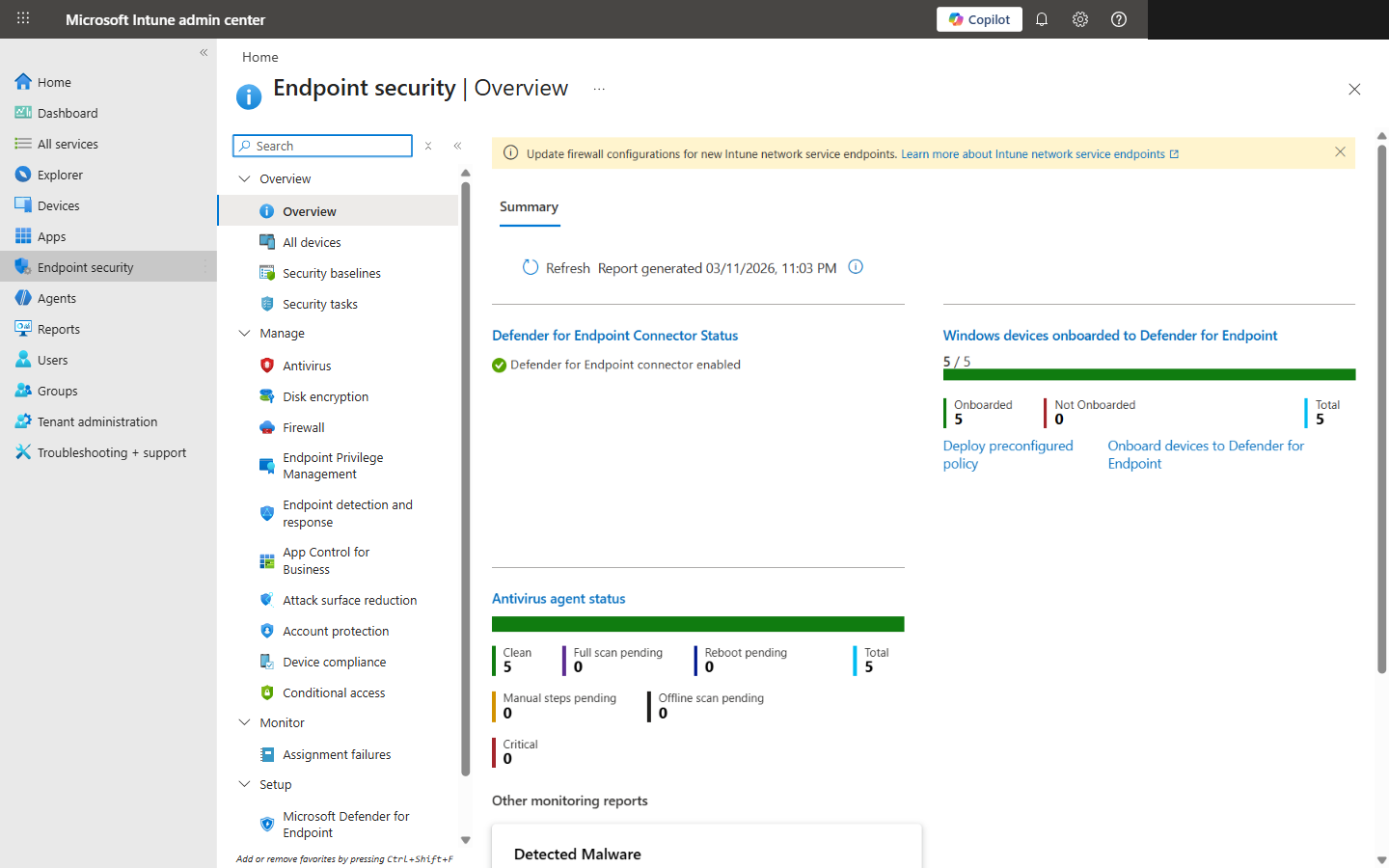
Endpoint Security Overview showing Defender connector status and antivirus agent health
Understanding Security Baselines vs. CIS Benchmarks
Here's where the confusion starts. Microsoft's security baselines are their opinionated defaults — a decent spread of BitLocker, Firewall, Defender, and password settings. CIS benchmarks are the industry-recognized hardening standard that HIPAA, PCI-DSS, NIST 800-53, and SOC 2 auditors actually care about. They're not the same thing, and I've seen too many teams treat them like they are.
Key Distinction
Microsoft baselines are your starting line. CIS benchmarks are the finish line. We mapped CIS v4.0.0 for Windows 11 — it's over 450 settings. Microsoft's baseline covers maybe 150-200 of those. That means you're looking at 250+ settings that need custom configuration profiles. That's where the real work lives.
Step 1: Access Security Baselines in Intune
- Sign in to the Intune admin center at intune.microsoft.com.
- Head to Endpoint security > Security baselines.
- You'll see several baseline types — Windows, Defender for Endpoint, Edge, and Cloud PC. We're focused on the Windows one.
- Select Security Baseline for Windows.
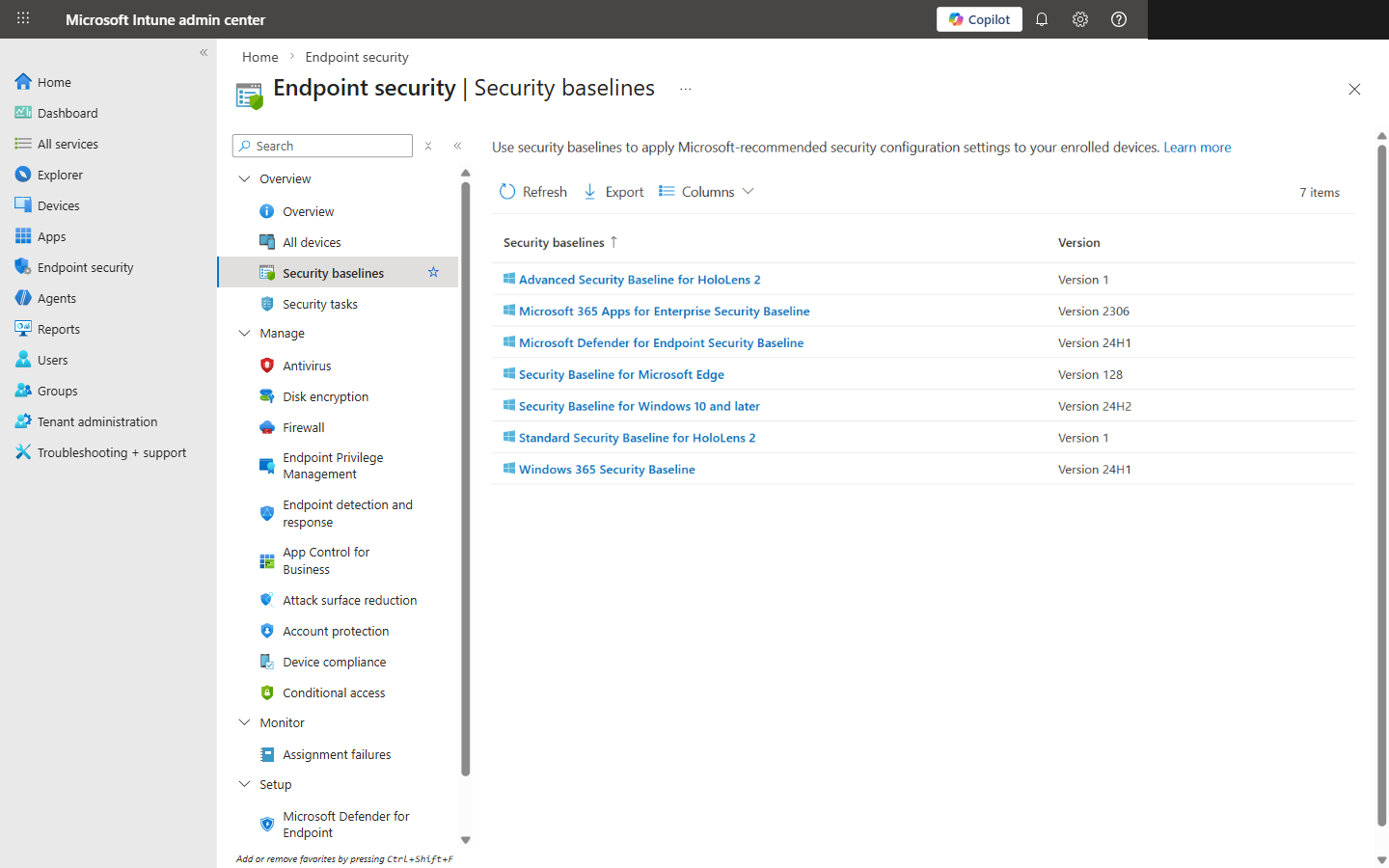
Security baselines list showing available baseline types and versions
Step 2: Create a New Baseline Profile
- Click Create policy.
- Give it a name you'll thank yourself for later. We use a convention like
WIN-Baseline-CIS-L1-AllDevices. Trust me — when you have 40+ policies, naming matters. - In the description, note what this baseline covers and any deliberate deviations from defaults. Future you will appreciate it.
- Click Next to get to the settings — that's where things get interesting.
Step 3: Review and Customize Baseline Settings
This is where nine out of ten admins go wrong. They glance at the settings, see everything looks reasonable, and click through. Don't do that. Every single setting needs to be evaluated against your actual environment. I've watched "Not configured" defaults lead to failed audits more times than I can count.
| Setting | Default | Recommended |
|---|---|---|
| BitLocker OS drive encryption | Not configured | Enable — XTS-AES 256-bit, no exceptions |
| Password minimum length | 8 characters | 14 minimum (CIS L1). 8 is embarrassing in 2026. |
| Account lockout threshold | 10 attempts | Drop to 5 (CIS L1). 10 is too generous. |
| Firewall domain profile | On | On — but check for GPO conflicts first or it breaks |
| Script scanning (Defender) | Not configured | Enable. Leaving this off is practically an invitation. |
Heads up: BitLocker enforcement on machines without TPM 2.0 will tank your enrollment. We had a client push this to 200 devices on a Friday — Monday was not fun. And if you're hybrid with on-prem GPOs still applying firewall rules, Intune will fight them. Sort that out before you flip the switch.
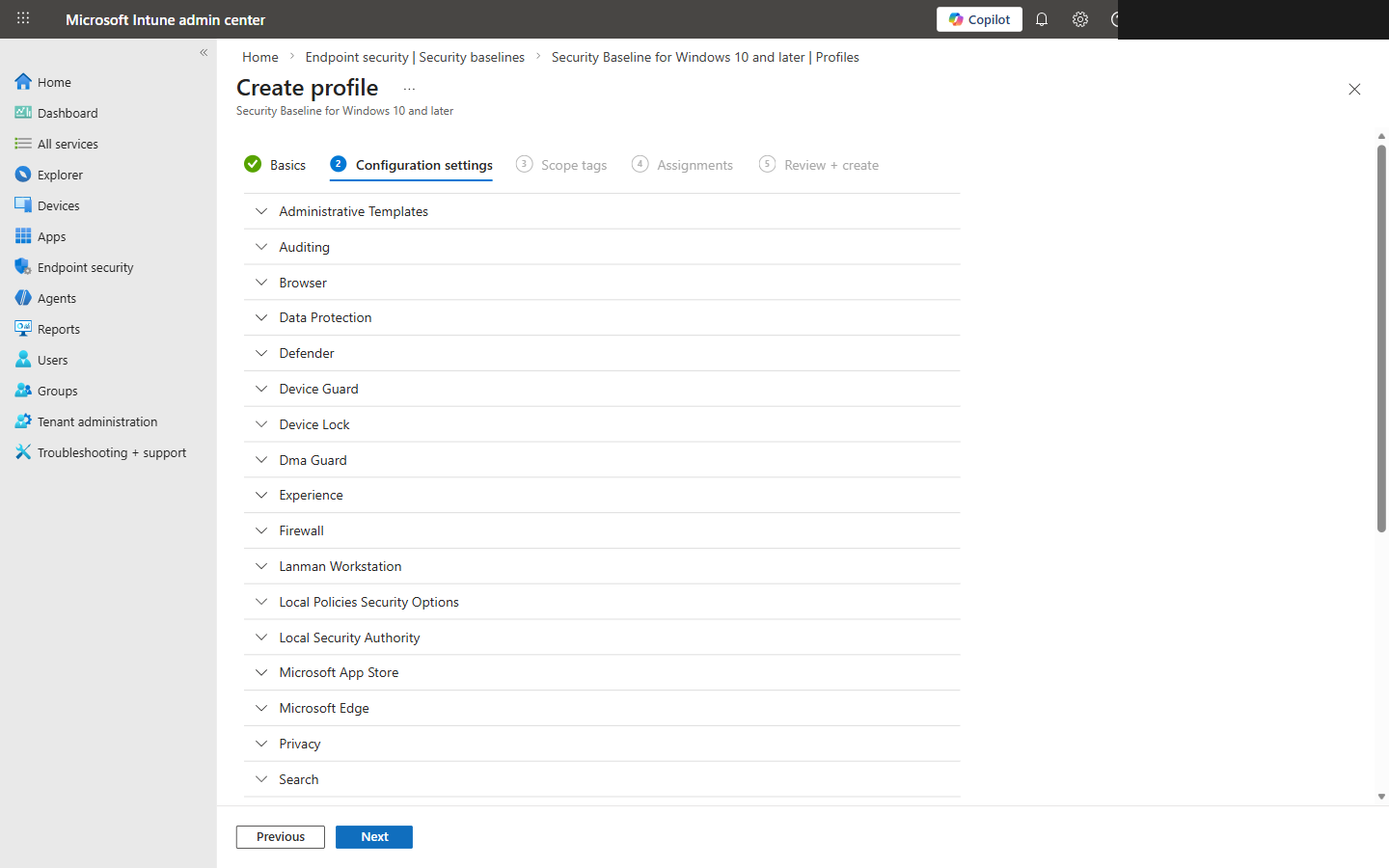
Baseline settings showing BitLocker encryption configuration options
Step 4: Assign the Baseline to Device Groups
- On the Assignments tab, click + Add groups.
- Start with a pilot group — 10-20 devices, mixed hardware models. Don't just grab your IT team's laptops; include the weird Dell from accounting.
- Exclude groups for kiosks, conference room displays, shared workstations — anything that'll behave differently under these policies.
- Review the summary and hit Create.
It'll deploy on the next Intune sync, which is usually within 8 hours. If you're impatient (and you should be during a pilot), force a sync from the device or the admin center.
Step 5: Monitor Baseline Compliance
Don't panic if things look incomplete after an hour. Give devices a solid 24 hours to check in before you start troubleshooting. Then head to your profile's Overview tab — you'll see four status categories:
Succeeded
Everything applied cleanly — this is what you want to see
Error
Something failed to apply — dig into per-setting status
Conflict
Another policy is fighting over the same setting
Not applicable
Device doesn't support this setting (older OS, missing hardware)
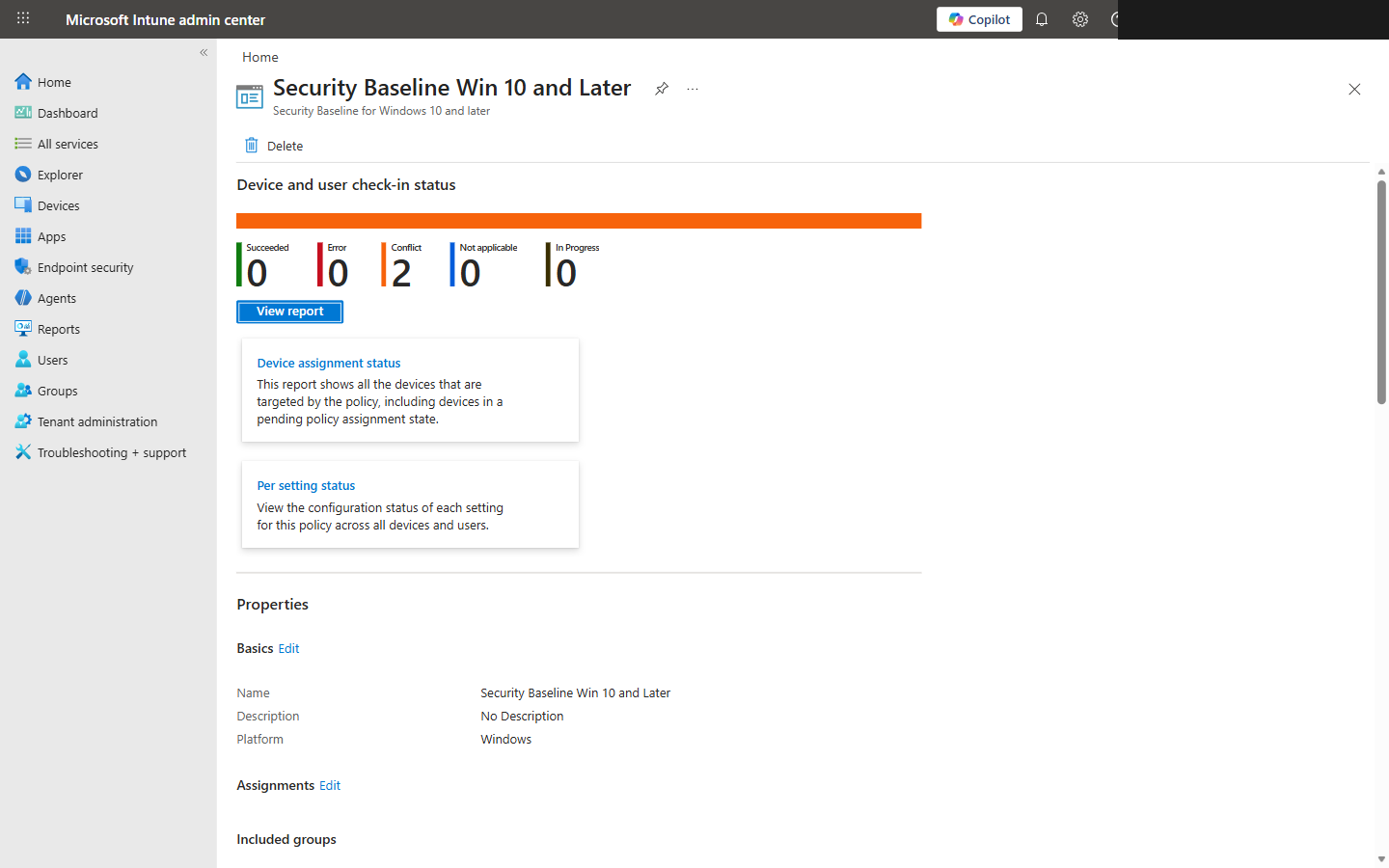
Baseline compliance overview showing Succeeded, Error, Conflict, and Not Applicable status
Step 6: Handle Conflicts and Troubleshooting
Conflicts are the bane of Intune management. They happen when you've got the same setting configured in two different policies. The fix is simple in theory: each setting lives in exactly one policy. In practice, untangling the mess takes patience.
The Usual Suspects
- !GPO and Intune stepping on each other: Run the Group Policy analytics tool in Intune before you touch baselines. We've seen environments with 30+ overlapping settings — it's messy.
- !BitLocker on older hardware: No TPM 2.0 or UEFI Secure Boot? It'll fail silently and report errors. Exclude those devices or explicitly allow software-based encryption.
- !Firewall rules breaking line-of-business apps: This is exactly why you pilot. That ancient ERP system your accounting team depends on? It probably needs a custom inbound rule. Find out on 10 devices, not 500.
Best Practices
Pilot first. Always.
I don't care how confident you are — never push a new baseline to all devices on day one. 10-20 devices, mixed hardware. This has saved us more times than I can count.
Document every single deviation
Changed a setting from default? Write down why. When the auditor asks in six months — and they will — you'll have the answer.
Layer CIS hardening on top
Use the baseline as your foundation, then build Settings Catalog profiles for the CIS settings it doesn't cover. Don't try to cram everything into one policy.
Never update baselines in-place
When Microsoft drops a new version, create a fresh profile. Don't update the existing one. You want a rollback path, not a prayer.
Review quarterly at minimum
CIS benchmarks get updated. Your environment changes. Set a calendar reminder and actually do the review. Drift is real.
The Bottom Line
A security baseline gets you maybe 40% of a full CIS Level 1 benchmark. That's it. The other 60% requires Settings Catalog profiles you build yourself. The baseline is just the foundation — the value comes from the customization you layer on top. Review every setting against CIS, pilot it properly, monitor the results, and you'll end up with a security posture that actually holds up when someone tests it. That's the difference between "we have Intune" and "we're actually secure."